
Asset Collections
Asset Collections in Acclaim Awards gathers the video, audio, images and documents from entries in your awards program into organised collections you can share for judging, awards production, press and publicity, and with your colleagues.

Asset Collections Overview
Asset Collections in Acclaim Awards organises assets from across your entries into folders so you can share them with the people who need them, without giving anyone access to the entries themselves.
Entries collect far more than Judges ever see. Alongside the work itself come signed agreements, regulatory documents, logos and publicity images. Each of those files has somewhere else to go: to a legal or compliance team, a marketing team, a production house, a sponsor. Collecting them entry by entry is slow, and opening up the entries to everyone who needs a file isn't an option.
Every Asset Collection keeps itself current. When an Entrant replaces a file or adds a new one, Acclaim updates the collection automatically, for you and for everyone you've shared it with. Nobody works from an out-of-date file, and nobody has to ask you for the latest version.
Availability and Requirements
Available on: Acclaim Flex (included)
Required role: Competition Admin, Entry Admin or Asset Collection Manager, to create an Asset Collection. No role is required to use an Asset Collection someone has shared with you.
You'll also need: entry forms with questions that collect or generate files (video, audio, image and document uploads, Workflow PDF or Print Validation)
Asset Collections Basics
An Asset Collection is a named, organised set of entry assets that Acclaim builds from the entries in your awards program and keeps up to date as those entries change. It references the assets in your entries. It doesn't move or copy them out of the entries.
Every Asset Collection belongs to the Competition Event you're working in when you create it, and it only ever draws assets from that Competition Event.
Entry assets are the files in your entries. They reach an entry in three ways:
Uploaded: through video, audio, image and document questions
Generated by Workflows: PDFs that the Workflow PDF question creates
Required by Validation: documents uploaded for the Print Validation question
Entry forms contain questions. A Question Group keeps different questions that gather the same kind of asset together, such as a company logo or a campaign video, even when those questions differ from one entry form to the next.
When you add a Question Group to an Asset Collection, Acclaim gathers assets from every question in the Question Group, whichever entry form the questions are in.
You choose what goes into an Asset Collection by adding Question Groups to it, not individual questions.
Asset Organisation is the folder structure Acclaim uses to arrange the assets in an Asset Collection, such as Category > Entry > Assets. You can change it at any time.
Releasing an Asset Collection populates it with assets, and from then on it keeps itself up to date automatically. Hold pauses those updates. Every new Asset Collection starts on Hold, so nothing populates until you release it.
Sharing makes an Asset Collection available to people other than you: members of your awards management team, colleagues who don't use Acclaim yet, or people outside your organisation. Every new Asset Collection is private to you until you share it.
Availability Dates set when an Asset Collection is available to the people you share it with. Leave Available Until empty and it stays available until you change it or stop sharing.
Asset Collections in Action
What you can do with Asset Collections depends on who needs your entry assets. These are some of the ways awards programs put them to work.
Supporting Venue-Based Judging
Moderators running judging sessions in a venue need the entry media they'll show the Judges ready to play. Playing it from a local copy keeps the session running when the venue's internet connection is unreliable. It also lets the moderator pace the room, so every Judge reviews the assets for the same entry at the same time.
Share an Asset Collection of the assets for judging with the moderators, organised by Category > Entry > Assets. They then make it available offline before the session (see Available Offline below).
Delivering Video to a Production House
A production house editing nominee and winner packages for the awards ceremony needs the entry media for those packages, and nothing else. Share an Asset Collection of the assets needed for production with the production house by email. Their editors can mount it and bring the files straight into their editing tools. When an Entrant replaces a video, the new version appears in the collection.
Creating Social Media Content
Your marketing team needs entry images for social posts through the season. Share an Asset Collection of the publicity image Question Groups with them, and they work from the current images without asking you for files.
Keeping Regulatory Records
Some awards programs must keep the declarations and regulatory documents submitted with entries. An Asset Collection of the Print Validation Question Groups gathers them in one place, organised by entry, for record keeping.
Distributing PDF Prints of Entries
When a jury, sponsor or media partner needs entries as PDFs, an Asset Collection of the Workflow PDF Question Groups collects every print ready to share.
Creating an Asset Collection
Every new Asset Collection is private to you. You share it once it's set up (see Sharing Asset Collections below).
A Source Group is a Group that defines which entries an Asset Collection draws from, such as submitted entries only. See About Groups.
Acclaim creates the Asset Collection in the Competition Event you're working in, shown under Competition Event when you create it. To collect assets from a previous year, use Switch to change to that Competition Event first. See Switch.
Here's How
Go to
Apps > Asset Collectionsand click + New.Add an Asset Collection Name.
Select the Source Group.
Select the Asset Organisation. The Asset Folder Preview shows how Acclaim will arrange the folders.
Click + Add Assets. Filter the list to the Question Groups that hold the assets you want, choose them, then click Save.
Set the Availability Dates now, or leave them for later.
Click Save.
Asset Organisation Options
Asset Organisation | How Acclaim arranges the assets |
|---|---|
No organisational structure | All assets in one folder, named after the Asset Collection |
Entry > Assets | One folder per entry |
Entry > Question Group > Assets | One folder per entry, with a subfolder per Question Group |
Category > Entry > Assets | One folder per category, with a subfolder per entry |
Category > Entry > Question Group > Assets | One folder per category, then per entry, then per Question Group |
Releasing and Viewing Assets
Every new Asset Collection starts on Hold. Releasing an Asset Collection populates it with the assets in its scope. From then on, it keeps itself up to date automatically.
Here's How
Go to
Apps > Asset Collections, click (...) for your Asset Collection and click Release.Wait for the progress meter to show Ready.
Click the Asset Collection name, then click down through the folders to the asset you want.
Click the asset name to preview it. To keep a copy, click the download option at the top of the preview.
The first release can take some time when an Asset Collection covers a large number of entries or large media files, such as full-length videos. Release it well before you need to share it, and share it once it shows Ready.
Once it's Ready, Acclaim adds, replaces and removes assets as the entries in its scope change.
Hold pauses those updates. Use it when you need an Asset Collection to stay exactly as it is, while a production house finishes an edit, say. Release it again to catch up with any changes.
Download a Whole Asset Collection
Connecting an Asset Collection to your computer as a drive is the way to download every asset at once. Once it's connected, copy the folders you need onto your computer. See Available Offline below.
A large Asset Collection can run to hundreds of gigabytes. Check you have enough space on your computer or NAS drive, and leave plenty of time for the copy.
Change the Asset Organisation
Click (...) for your Asset Collection and click Edit.
Select a new Asset Organisation and click Save.
Acclaim re-syncs the Asset Collection. Its assets are available again once it shows Ready.
Changing the Asset Organisation rearranges the folders for everyone you've shared the Asset Collection with. Let them know first, especially anyone with a mounted drive or an automated watch folder, because the file paths they rely on will change.
Sharing Asset Collections
You can share an Asset Collection with anyone who has an email address. People you share with can view and download its assets for as long as its Availability Dates allow.
Acclaim emails each person when you share an Asset Collection with them, and again if you stop sharing it.
When someone with no management role logs in, Acclaim routes them straight to the Asset Collections shared with them. The one exception is a Judge with scoring assignments while scoring is open: Acclaim routes them to their scoring assignments instead.
Anyone with a management role opens shared Asset Collections from Apps > Asset Collections.
Share With Your Team
Acclaim groups your team members by role: Production Team, Entry Admins, Entry Admins & Coordinators, Judging Admins, and Judging Admins & Coordinators.
Click (...) for your Asset Collection and click Share.
Select the Share To option and choose the group.
Untick anyone in the group who shouldn't receive it, then click Share & Notify.
To share with a colleague who doesn't have an Acclaim account yet, use Named People, below.
Share With People Outside Your Organisation
Click (...) for your Asset Collection and click Share.
Select the Share To option and choose Named People.
Add the person's email address and click Share & Notify.
Acclaim checks that each email address is correctly formatted and active before it shares. It can't share with an invalid or inactive address.
Stop Sharing an Asset Collection
An Asset Collection stops being available to everyone you've shared it with at its Available Until date and time. To stop sharing sooner:
Click (...) for your Asset Collection and click Share.
Click the delete icon next to the person, then click Stop Sharing & Notify.
Edit the Sharing Notifications
Acclaim sends a separate email for each Asset Collection you share. It chooses the message by checking whether the email address belongs to someone already registered with your awards program.
Message | When Acclaim sends it |
|---|---|
New registration Start Share | You share with someone not yet registered |
New registration Stop Share | You stop sharing with someone who hasn't registered yet |
Start Asset Collection Sharing | You share with someone already registered |
Stop Asset Collection Sharing | You stop sharing with someone already registered |
You can't edit Acclaim's standard messages directly. To change the wording, copy the message and edit the copy:
Go to
Setup > Service Emailsand click Asset Collection.Expand the message you want to change.
Click (...) for the message and click Copy.
In the Select message scope dialog, choose Competition and click Copy.
Update the wording in the copy, add its Effective From date, then click Save.
To check how a message looks, click Send Test in the same (...) menu.
Available Offline
Sometimes the people using an Asset Collection can't rely on streaming:
Venue-based judging, where the internet connection is busy or unreliable
Moderated judging, where moderators control when Judges see each entry's assets
Production environments, including automated ingest through watch folders
When you need offline access, or high-performance availability in production workflows, you can connect an Asset Collection to a computer or NAS drive, where it appears as an ordinary drive.
Local Access Credentials are the authentication keys that connect an Asset Collection to your device.
Each person you share an Asset Collection with generates their own credentials for it. As the person who created the Asset Collection, you can also generate a set for your own use.
Treat your Local Access Credentials as confidential, like a password. Anyone who has them can reach the assets in that Asset Collection. Don't pass them on or store them where other people can see them.
What You Need
You need a drive mounting utility that connects to Amazon S3. You don't need an AWS account to connect. If you use a NAS drive, one may already be among its built-in tools. Acclaim uses these in-house:
Platform | Utility |
|---|---|
Mac | CloudMounter for Mac, from the Mac App Store or cloudmounter.net |
Windows | CloudMounter for Windows, from cloudmounter.net |
Windows, Linux | Callback Drive for Amazon S3, with a free Personal License, from callback.com |
Any utility that connects to an Amazon S3 bucket works. Check whether you already have one installed.
Your organisation's IT security policy may require permission before you install software. Check with your IT team first.
Get Your Local Access Credentials
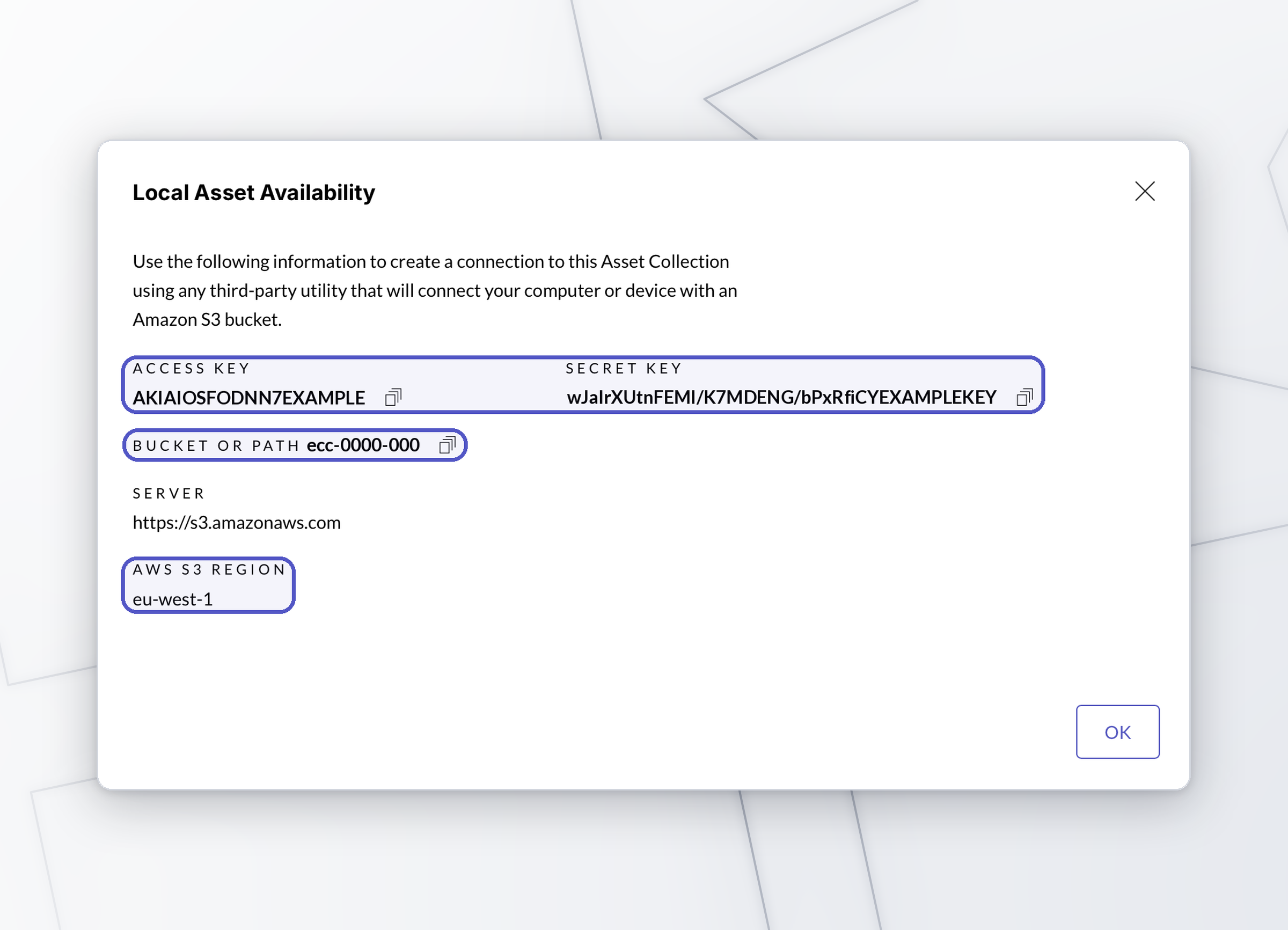
Click (...) for your Asset Collection and click Local Asset Availability.
The first time, click Generate Access Keys.
Keep this dialog open. It's easier to copy the details from here into your utility. Every utility asks for the same information: Access Key, Secret Key, Bucket or Path and, for some, AWS S3 Region. Click the copy icon next to a value to copy it.
Connect With CloudMounter
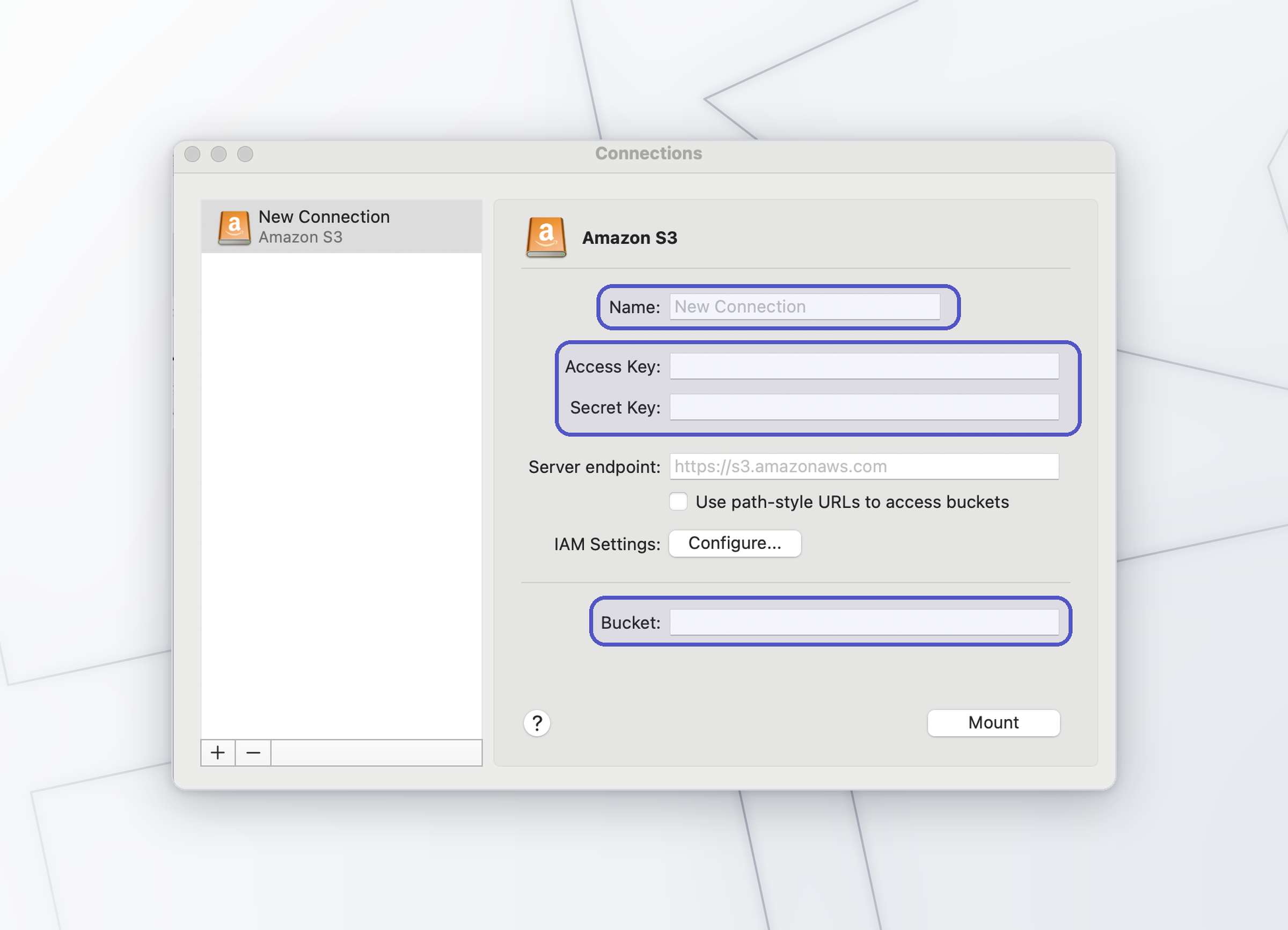
Open CloudMounter and click Amazon S3.
Add a name for the drive.
Add the Access Key, Secret Key and Bucket or Path from the Acclaim dialog. Leave the server endpoint and IAM settings as they are.
Click Mount.
On a Mac, the Asset Collection appears in Finder. On Windows, it appears in File Explorer.
Connect With Callback Drive for Amazon S3
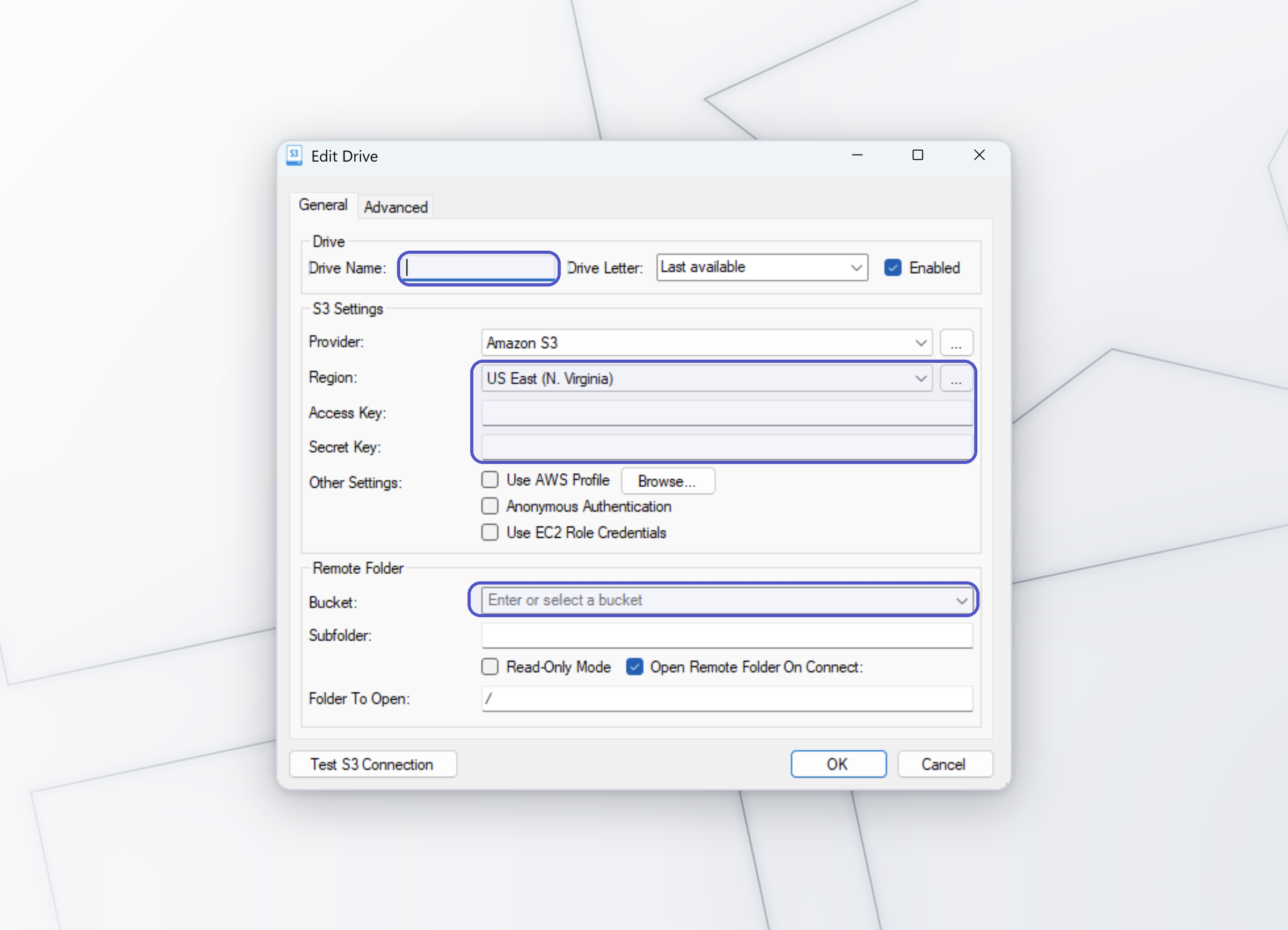
Open Callback Drive for Amazon S3 and click New.
Add a name for the drive and select Amazon S3 as the provider.
Select the region that matches AWS S3 Region in the Acclaim dialog. Callback Drive may already show a different region, so check it before you continue.
Add the Access Key, Secret Key and Bucket or Path from the Acclaim dialog, then click OK.
Accept the security prompts to finish connecting.
The Asset Collection appears in File Explorer.
Your drive mounting utility has settings for keeping the Asset Collection up to date on your device. Before you go offline, check that the copy on your device is up to date while you still have an internet connection. How long that takes depends on the speed of your connection, so leave plenty of time before the session.
Managing Asset Collections
Whoever creates an Asset Collection owns it. Only the owner can share it or delete it. Every Asset Collection has these options in its (...) menu:
Option | What it does |
|---|---|
Edit | Changes the Asset Collection's settings. Most changes start a re-sync |
View | Opens the Asset Collection's folders on screen |
Hold | Stops the Asset Collection updating when the entries in its scope change |
Release | Populates the Asset Collection and keeps it up to date |
Share | Shares the Asset Collection, or stops sharing it |
Local Asset Availability | Generates the Local Access Credentials for making the Asset Collection available offline |
Delete | Deletes the Asset Collection and emails everyone it's shared with to tell them they no longer have access |
Deleting an Asset Collection removes it for everyone you've shared it with, straight away, and you can't undo it. Your entry assets stay safe in the entries. Only the collection goes.
Asset Collection Statuses
Status | What it means |
|---|---|
Hold | The Asset Collection isn't populating or updating |
Add Content | The Asset Collection has no Question Groups yet. Edit it and click + Add Assets |
Synching | Acclaim is updating the Asset Collection with changes in its entries, or after you changed its settings |
Ready | The Asset Collection holds every asset in its scope and keeps itself up to date |
Using Asset Collection Aliases
An alias replaces a name in an Asset Collection's folders without changing it anywhere else in Acclaim. Aliases have limits on length and on which characters you can use.
Competition Event Name Alias
Acclaim labels the Competition Event in an Asset Collection with the Asset Collection Event Name. There's one for each Competition Event, and it applies to every Asset Collection in that event. Change it to give the folders a clearer name. The Competition Event keeps its own name everywhere else, and your team can rename the Competition Event without affecting any Asset Collection.
Go to
Apps > Asset Collections.Under Asset Collection Event Name, click Edit.
In the Edit Event Name Alias dialog, update the Event Name Alias and click Save.
The Event Name Alias can contain letters, numbers, spaces, parentheses, hyphens and underscores.
Category Name Alias
The Asset Collection Alias on a category replaces the category reference with a readable name in the folders. You need permission to edit category properties.
Go to
Setup > Categoriesand click the category name.Expand Optional Category Properties.
Add the name in Asset Collection Alias and click Save.
Give several categories the same Asset Collection Alias and Acclaim treats them as one category in the Asset Organisation. It's a clean way to merge closely related categories into one folder.
Changing the Asset Collection Event Name re-syncs every Asset Collection in the Competition Event. Changing a category's Asset Collection Alias re-syncs every Asset Collection that organises by category. Either way, the folders change for everyone you've shared those Asset Collections with, so let them know first.
Troubleshooting Asset Collections
Symptom | Likely cause |
|---|---|
The Asset Collection is empty | It's still on Hold, or shows Add Content because it has no Question Groups yet. Release it, or edit it and click + Add Assets |
Entries are missing | They aren't in the Source Group. A Source Group of submitted entries only leaves out entries still in progress. Or the Asset Collection is still Synching |
A new or replaced file hasn't appeared | The Asset Collection is on Hold, or still Synching. Release it and wait for Ready |
Last year's Asset Collections aren't there | You're working in a different Competition Event. Use Switch to change to the Competition Event the Asset Collection was created in |
The folders have changed | Someone changed the Asset Organisation, the Asset Collection Event Name or a category's Asset Collection Alias |
Someone you shared with can't see it | Its Availability Dates haven't started yet, or Available Until has passed |
Your drive mounting utility won't connect | Check the Access Key, Secret Key and Bucket or Path match the Local Asset Availability dialog exactly. In Callback Drive, check the region matches AWS S3 Region |
Was this helpful?